Changelog

Follow new updates and improvements to Doowii, Inc..

New Onboarding Tutorial + Question Library + Chart Assistant
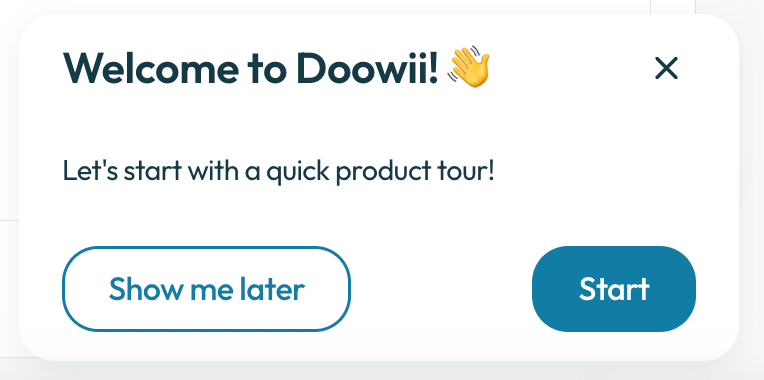
Onboarding Tutorial

Doowii’s new onboarding tutorial guides users step-by-step through asking a question to pinning the result. Once you’ve asked a question and received a result, the tutorial shows you how to “pin” that result, saving it to a pinboard.

Question Library

Doowii now includes a Question Library, a curated collection of vetted, high-quality questions that users can browse and run instantly and received a result.

Chart Assistant

Doowii’s new chart assistant lets users make any chart edit using natural language. You can ask the chart chat to change colors, switch chart types, add titles or labels, adjust aggregations, or even ask what’s possible, all without clicking through menus. It’s the fastest way to customize and explore your visualizations.

UX Updates

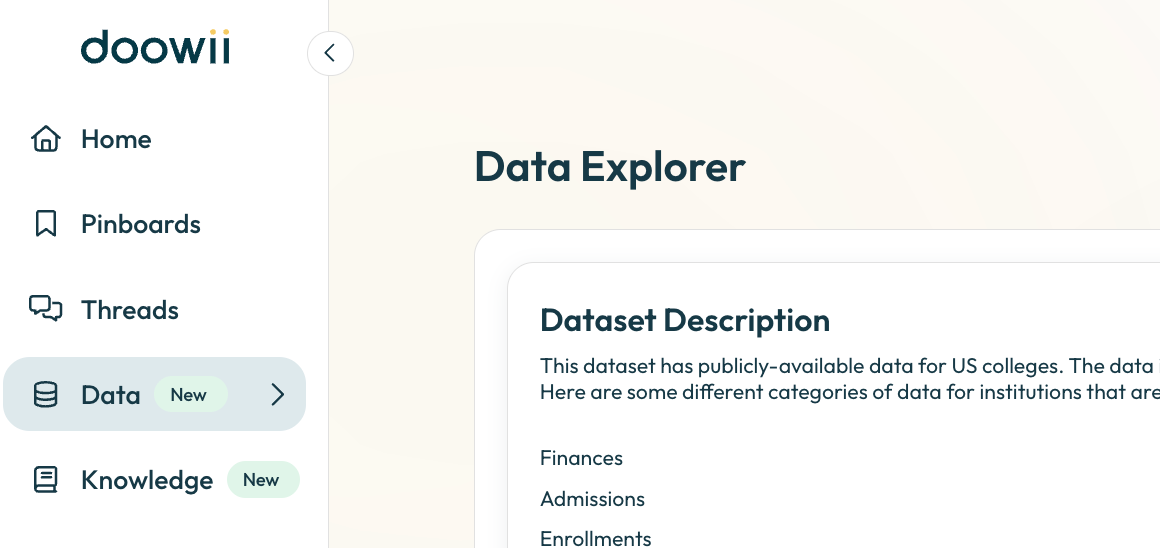
  • The left navigation bar has been updated with more concise labels and an updated home button.

  • Knowledge Library has been updated to Preferences with a more intuitive front end.

  • Collapsable summary so you can now have more space to view your result.

Table Uploads

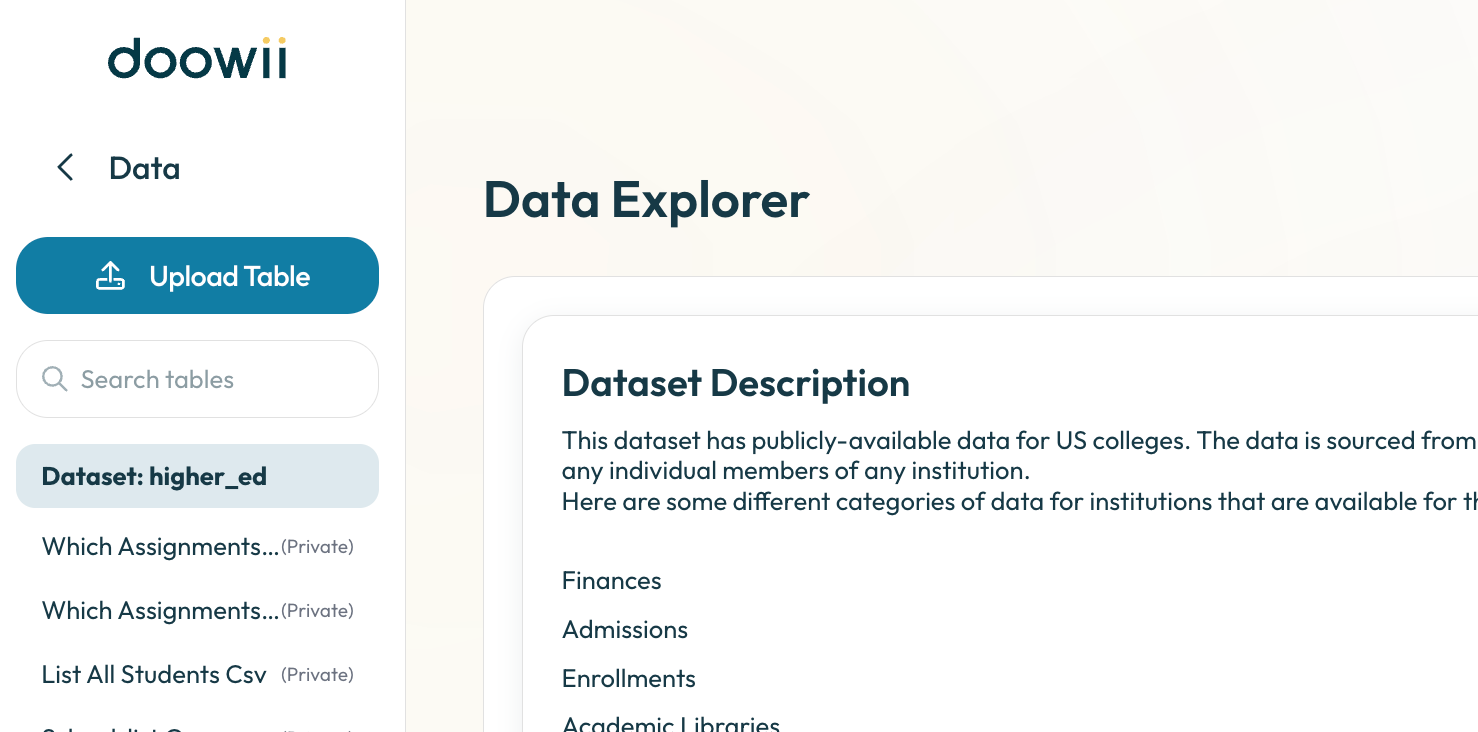
Upload your own data tables directly into Doowii to explore, visualize, and analyze them alongside your existing data. Doowii automatically detects column types, generates table and column descriptions then lets you know when the table finishes uploading, so you can start asking questions and generating insights.

  • Upload your own dataset in CSV, Excel (.xls/.xlsx, single or multi-tab), or TSV format.

  • Access your uploaded table at the top of your dataset list in Data Explorer.

  • Query and visualize your data alongside Doowii’s built-in tools.

  • Delete tables at any time if you no longer need them.

Limits and Restrictions

  • File size limit: 50 MB per file.

  • File formats supported: CSV (comma-delimited only), Excel (.xls/.xlsx), TSV.

  • Special characters: Emojis and unusual symbols may not display correctly.

  • Joins: Table joins are not supported in this version.

  • Data Refresh: Uploaded data cannot be refreshed. To update the data, delete the table and upload a new file.

  • Table Access: Uploaded tables are private to the user who uploaded them. They are not shared across your institution’s account. Admins can still share files across accounts using the Knowledge Library, which is separate from Table Uploads.

Data Explorer and Pivot Mode

Data Explorer

We’ve upgraded the Data Explorer to make it easier to understand your data at a glance:

  • Table Descriptions with Joins - Quickly see how each table connects to others and what it represents.

  • Column Details - View column names, descriptions, and types so you always know what you’re working with.

  • Data Preview - Peek into the data directly within the Explorer to confirm you’re looking at the right information.

This tool makes navigating your dataset faster, clearer, and more intuitive, so you can spend less time guessing and more time analyzing.

Pivot Mode

You can now use Pivot Mode directly in charting. This lets you:

  • Rearrange your data dynamically with pivoted views

  • Compare categories and measures side-by-side

  • Unlock more flexible, multi-dimensional analysis

With Pivot Mode, your charts adapt to the way you want to slice the data, giving you deeper insights without extra setup.

Earlier updates